
Key points:
- ACF custom fields work with the WordPress Block Editor, storing data in
wp_postmetaand ensuring compatibility with Gutenberg. - To display ACF fields, enable the native custom fields panel or use block plugins like Blocks for ACF Fields or native block bindings.
- For complex layouts, ACF PRO’s Blocks feature enables full control over custom block development using just PHP.
- ACF Blocks provide a scalable solution for projects requiring custom HTML output, dynamic field integration, or complex structures beyond standard block features.
The block editor fully supports custom fields, including those from Advanced Custom Fields (ACF®). ACF and native custom fields share the same metadata system – both store data in wp_postmeta – making them inherently compatible with Gutenberg.
Most field visibility issues trace back to disabled panels or incorrect location rules, not actual incompatibility.
Once you understand why fields aren’t appearing, fixes are straightforward.
We’re going to cover how to set up fields, display them in blocks, pick the right method for your use case, and avoid common pitfalls. We’ll also show you how to view custom field data in the Block editor through block plugins and block bindings.
For complex layouts involving repeaters or custom markup, ACF PRO’s Blocks provide a PHP-based path that doesn’t require React.
If you’re looking to display custom field values on the frontend instead, you can use a page builder like Divi, Bricks, Beaver Builder, and Elementor, all of which offer native ACF integration.
How custom fields in the block editor work
Custom fields are key/value pairs stored in the wp_postmeta table.
Each field creates a row with a meta key (the field name) and a meta value (the data). WordPress has supported this metadata system since long before Gutenberg existed.
ACF uses the same storage mechanism.
The difference is what ACF layers on top: a visual interface for creating fields, validation rules, conditional logic, and structured field definitions that enforce data consistency. Under the hood, an ACF text field and a native custom field store data identically.
This shared foundation means the block editor doesn’t treat ACF fields as foreign objects. They load, save, and query like any other post meta. The complications people encounter usually involve visibility settings and display methods rather than any fundamental compatibility issues.
The native custom fields panel is disabled in Gutenberg by default, and ACF hides it further to reduce confusion.
Here’s how to enable it when you need direct meta access.
How to enable custom fields in WordPress Block Editor
The block editor hides the native custom fields panel by default, but you can enable it in a few easy steps:
- Click the three-dot options menu in the top-right corner of the editor.
- Select Preferences.
- Navigate to the Advanced section.
- Toggle Custom Fields to on.
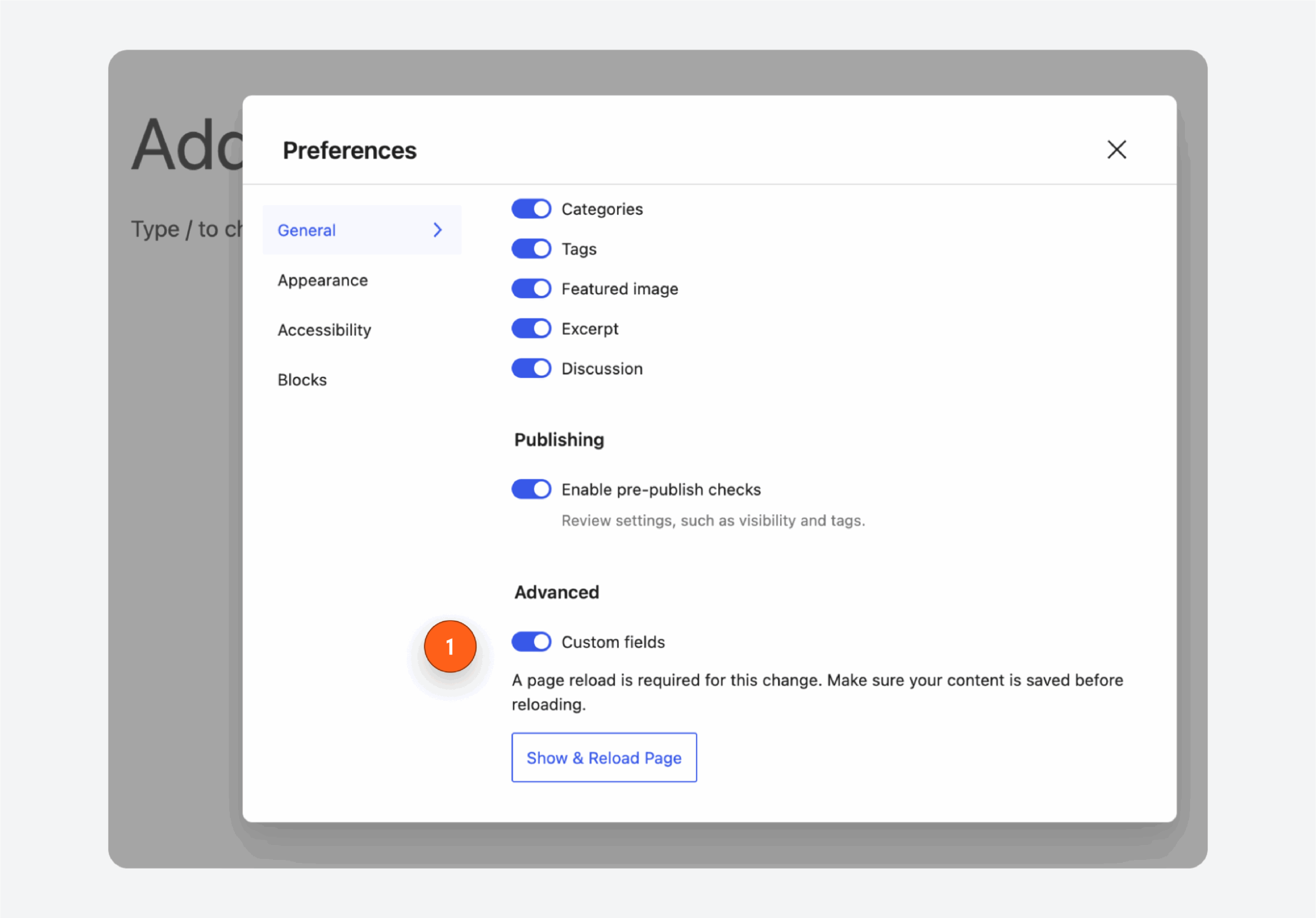
- Click Show & Reload Page.
The editor refreshes and displays WordPress’s built-in custom fields panel below your content. This panel shows raw meta keys and values attached to the current post. You can add new fields, edit existing values, or delete entries directly.
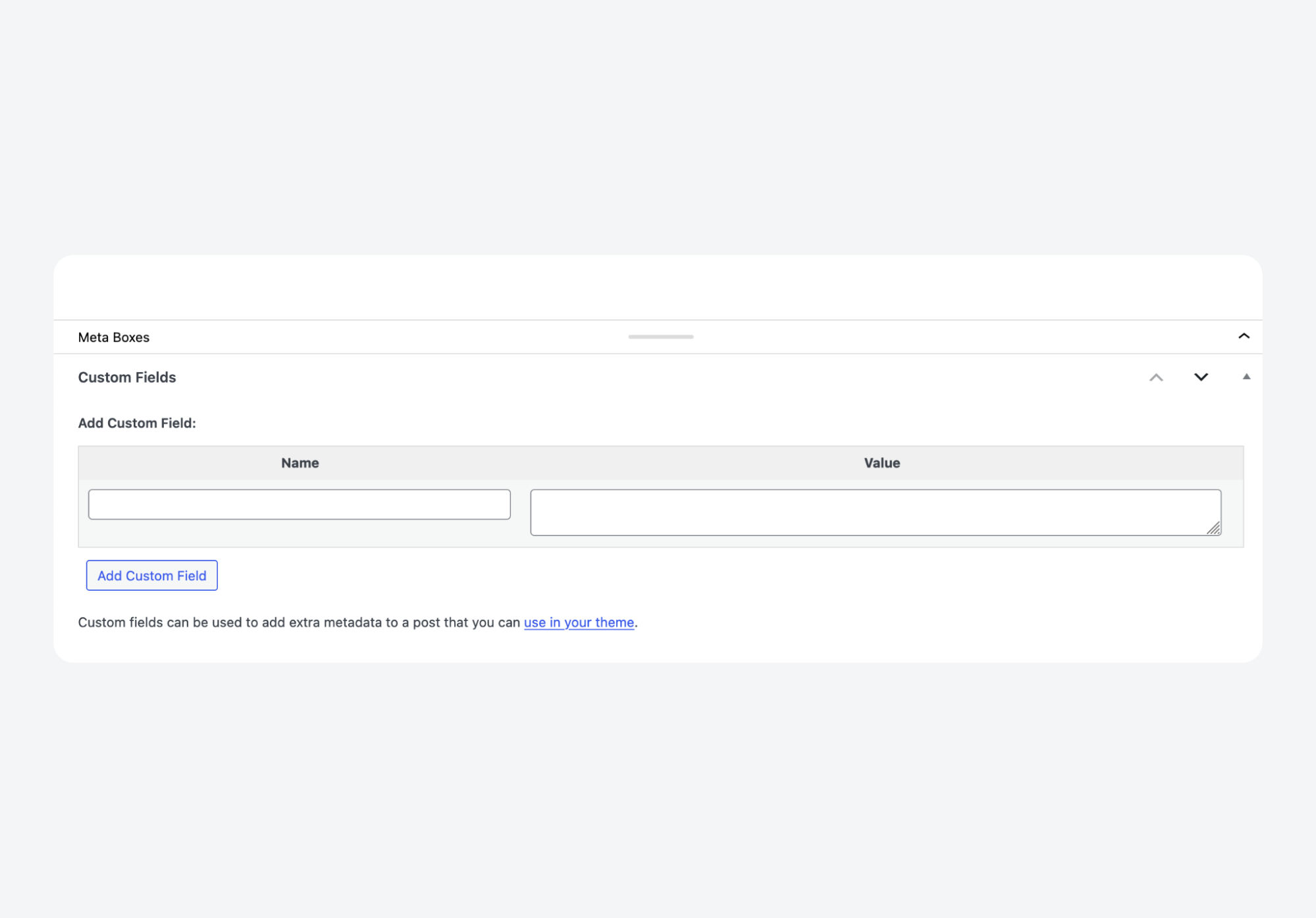
If you don’t see the Custom Fields toggle in Preferences, ACF is likely hiding it. The next section explains why and how to restore access.
Why can’t I see custom fields in Gutenberg?
ACF intentionally hides WordPress’s native custom fields panel. This prevents confusion between the raw meta interface and ACF’s structured field groups – two different ways of viewing the same underlying data.
To restore the native panel while keeping ACF active, add this filter to a custom plugin or custom code snippet:
add_filter( 'acf/settings/remove_wp_meta_box', '__return_false' );This is useful when debugging field values or accessing meta keys that aren’t part of any field group. Most users won’t need it for daily editing, but developers troubleshooting field issues will find it essential.
Do custom fields work with the block editor?
Yes. Native custom fields and ACF fields both load and save normally in Gutenberg. The block editor reads from and writes to wp_postmeta using standard WordPress functions, so any metadata system built on that table works without modification.
ACF adds validation, sanitization, and conditional logic on top of this flow.
When you save a post, ACF processes field values according to your field group settings before storing them as regular post meta. When you load a post, ACF retrieves that meta and formats it for display in its field UI. The storage layer remains unchanged.
Setting up ACF fields
While WordPress includes a basic custom fields interface, it only handles simple key/value pairs without validation, field types, or organizational structure. ACF gives you a proper custom field management system with repeatable workflows.
ACF organizes custom fields into field groups, containers that hold related fields and control where they appear. Each field group has its own location rules, field definitions, and display settings.
To create a field group with ACF:
- Go to ACF > Field Groups > Add New.
- Give the group a descriptive name that reflects its purpose, like “Product Details” or “Author Bio.”
- Add individual fields using the Add Field button.
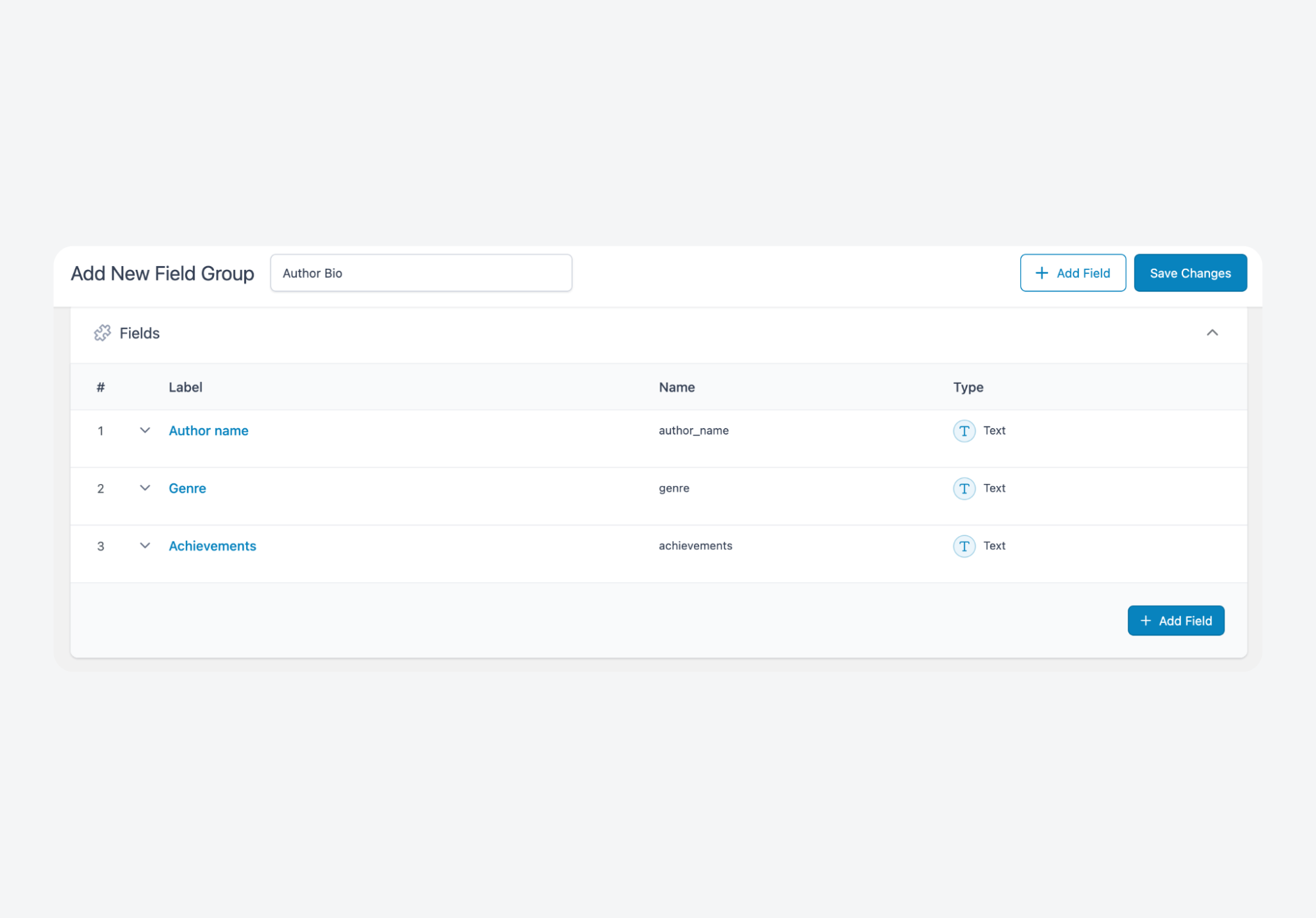
- Save the group.
Each field needs a label (what editors see) and a name (what developers reference in code). ACF auto-generates the name from your label, but you can customize it. Use lowercase letters with underscores for consistent, predictable template access.
Location rules determine where your field group appears. Set conditions like Post Type is equal to Product or Page Template is equal to Landing Page to target specific content. You can combine multiple rules for precise control – showing fields only on certain post types, user roles, taxonomies, or page templates.
Creating field groups that work for you
Once you’ve created your first field group, a few structural decisions will save you headaches down the road.
Field names should use lowercase letters with underscores for separation (like event_date or product_price).
То eliminate inconsistencies when referencing fields in templates or debugging database entries, avoid:
- Spaces
- Hyphens
- or camelCase
ACF auto-generates names from labels, but we’d recommend reviewing them before saving, just so you’re familiar.
Location rules need precision.
Post Type is equal to Post works for blog content, but adding a second condition like Post Template equals Default prevents fields from appearing on archive pages or custom templates where they don’t belong. Layer conditions intentionally rather than relying on broad rules that might match unintended contexts.
Incorrect location rules are the most common reason fields don’t appear where expected. Double-check these settings first when troubleshooting missing fields.
Prefix field names on larger projects.
Using product_price instead of just price avoids collisions when multiple field groups contain similarly named fields. This will prove critical when querying meta values across different post types or building reusable template partials.
Field type best practices
With the basics of ACF in place, we can now go over some more advanced field configuration choices that will really start to shape your content model as it expands:
- Match field types to expected data because ACF enforces format rules automatically and eliminates validation headaches. Choose URL fields for links, Date Pickers for dates, Image fields for media, and Email fields for contact addresses.
- Write descriptive field labels since they serve as inline documentation and reduce editor confusion. Replace vague labels like “Image” with specific instructions like “Featured Product Image (800×600px minimum)” that set clear expectations.
- Use structured fields where freeform text creates consistency problems over time. Select fields with predefined options prevent typos, Group fields keep related data together, and Repeaters handle variable-length lists like team members or testimonials.
- Reserve complex field types for genuinely variable data because unnecessary complexity increases editing overhead. Default to simple fields and reach for things like Repeaters or Flexible Content layouts only when your content model actually requires them.
How to display custom field data in the Block Editor
ACF fields appear in their own metaboxes below or beside the main content area. But what if you want to see field values directly within the block editor canvas, alongside your other content blocks?
Two methods let you surface custom field data inside the editing interface: dedicated block plugins and native block bindings. Both display field values as part of your block layout while you work
Method 1: Using dedicated block plugins
Blocks for ACF Fields is a third-party plugin – it’s developed independently and is not affiliated with ACF or WP Engine – that adds blocks for displaying ACF field values directly in the editor canvas. The plugin provides a dropdown interface for selecting which field to surface.
To display a field using Blocks for ACF Fields:
- Install and activate the plugin.
- Open a post or page that has ACF fields attached. Fill in the fields with values if they’re still blank.
- Add a new block and search for “ACF Field.”
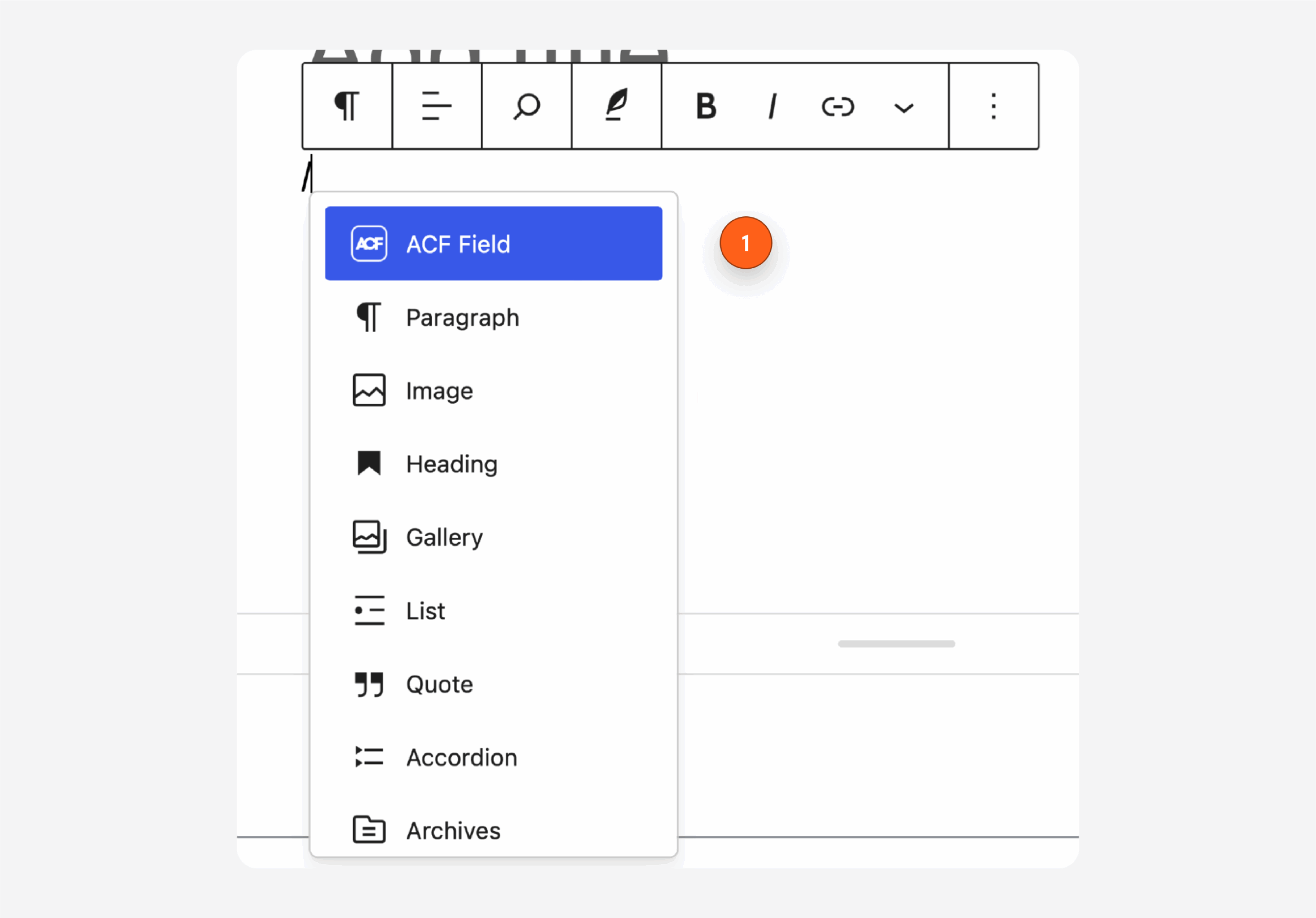
- Insert the block where you want the field value to appear in your layout.
- Select your target field from the dropdown in the block settings panel.
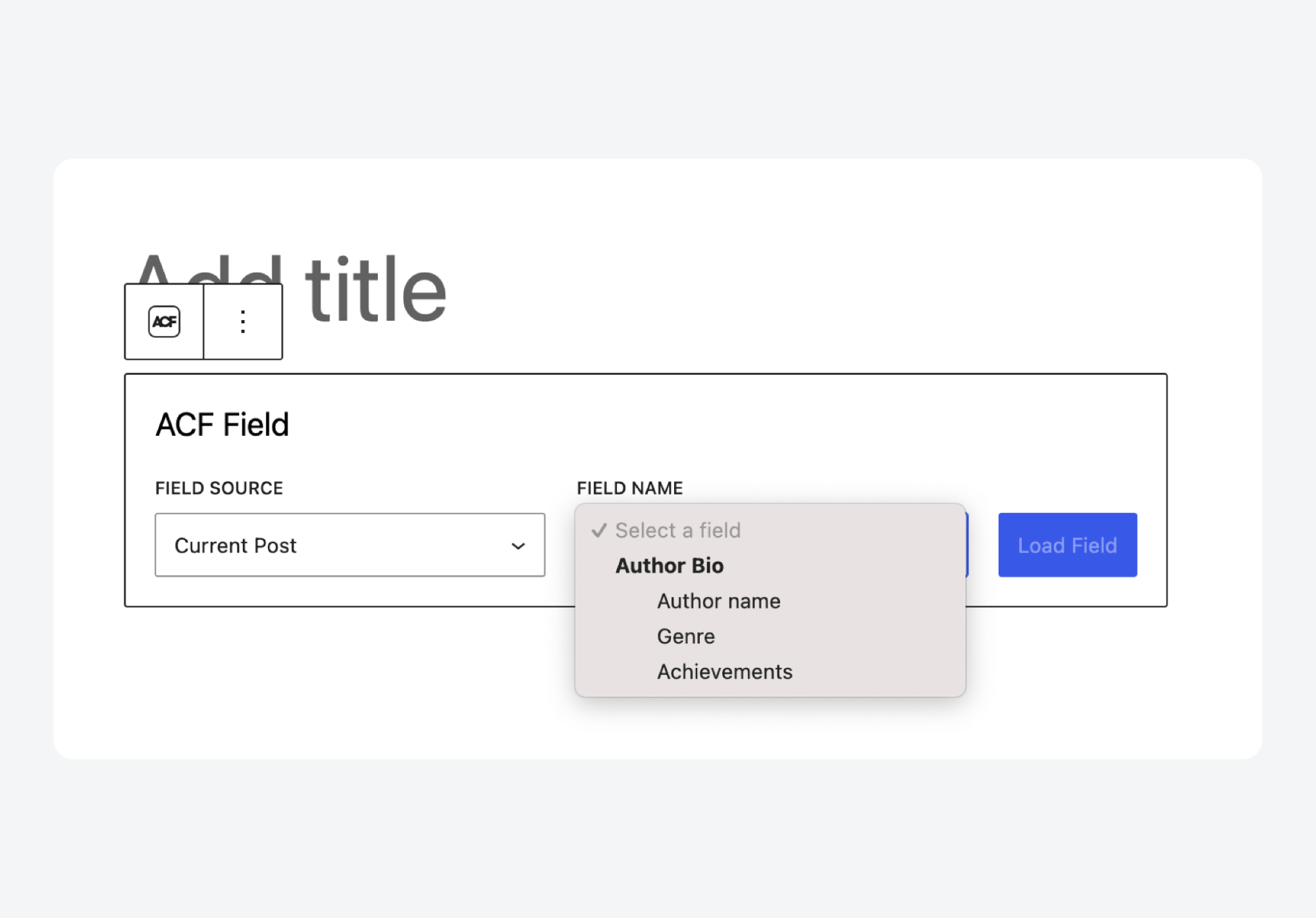
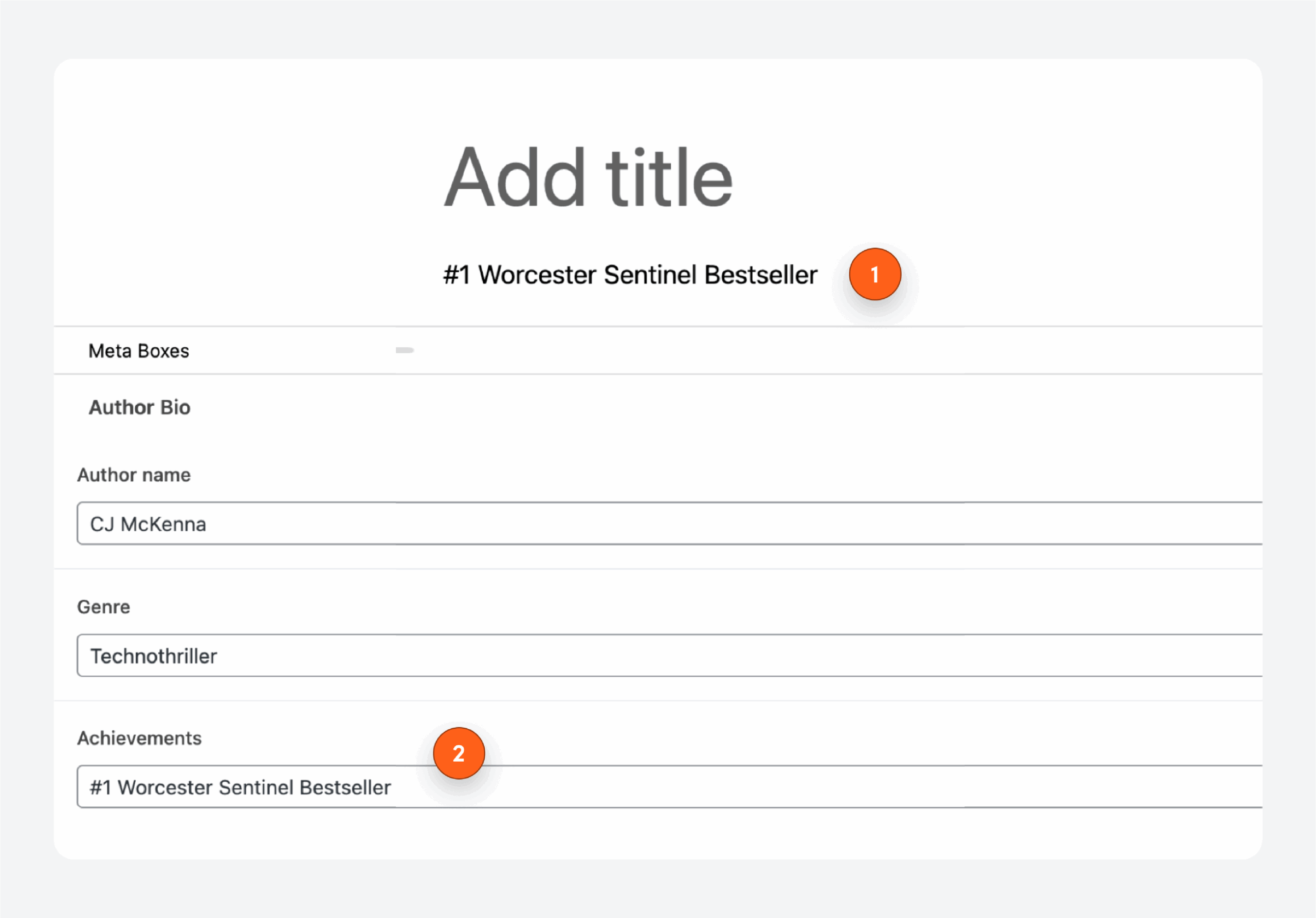
The field value appears inline with your other blocks, updating as you edit. Detailed configuration options are documented on the plugin’s directory listing.
Method 2: Using native block bindings
Block bindings connect post meta directly to core block attributes. Instead of adding a dedicated field block, you bind an existing block, like a paragraph or image, to a custom field value. The bound block renders the field’s stored data on the frontend.
WordPress introduced block bindings to support dynamic, data-driven content editing. The feature lets you build layouts where blocks pull their content from metadata rather than manual entry.
To bind an ACF field to a core block:
- Add a supported block (paragraph, heading, image, or button) to your content.
- Open the Code Editor view for the block.
- Add a metadata attribute specifying the bindings source and target field name. Here’s an example for a paragraph bound to a field called achievements:
<!-- wp:paragraph {"metadata":{"bindings":{"content":{"source":"acf/field","args":{"key":"achievements"}}}}} -->
<p></p>
<!-- /wp:paragraph -->- Switch back to the Visual Editor. You’ll see a generic “ACF Fields” label rather than your actual field value. To verify the binding works, preview or view the published post.
Block bindings suit single-value text fields in straightforward layouts. A few practical limitations you should note:
- The editor shows a placeholder instead of the field value, so you lose the visual context that makes the block editor useful.
- Bindings require hand-editing JSON rather than clicking through a settings panel.
- Repeaters, Groups, WYSIWYG, and relational fields don’t work.
- When bindings fail, there’s no error message indicating why.
💡 For editor-visible field values, ACF Blocks may be more practical.
Supercharge Your Website With Premium Features Using ACF PRO
Speed up your workflow and unlock features to better develop websites using ACF Blocks and Options Pages, with the Flexible Content, Repeater, Clone, Gallery Fields & More.
Meet ACF Blocks: The scalable path for complex custom fields
Block bindings and Blocks for ACF Fields handle most field types without code, including Repeaters and nested structures for the latter. But you’re working within their boundaries. When you need specific HTML output or conditional logic based on field values, these methods reach hard limits.
ACF Blocks solve this gap. Available as part of ACF PRO, this feature lets you build custom blocks using PHP instead of React. You get full control over output markup while avoiding the JavaScript complexity that makes native block development inaccessible to many WordPress developers.
Unlike block bindings, ACF Blocks let you render your field values live in the editor.
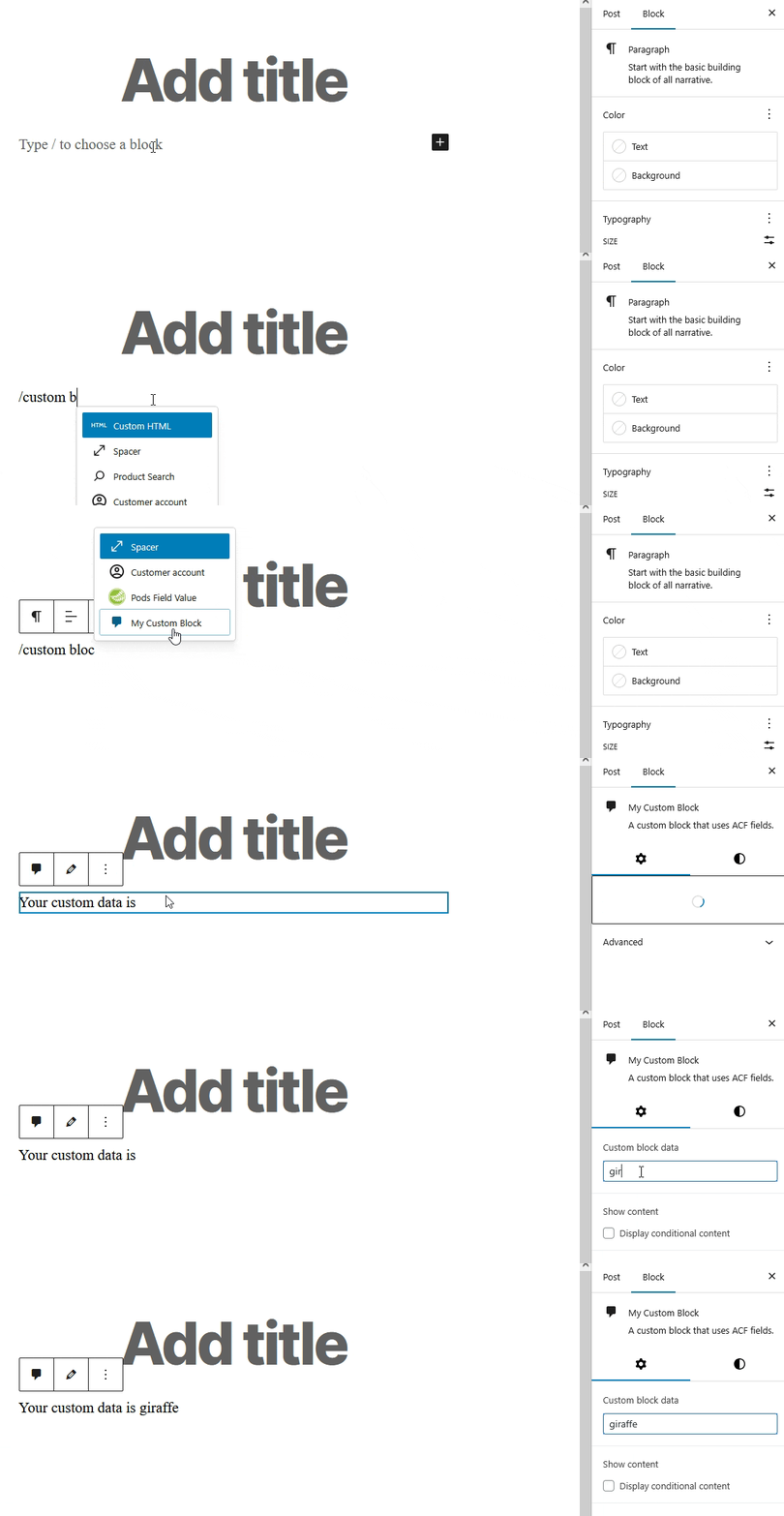
If your project needs markup that doesn’t fit standard block patterns, or you’d rather not add another plugin dependency, ACF Blocks keep everything within the familiar ACF ecosystem.
When do I need ACF Blocks?
ACF Blocks make sense where your requirements exceed what dropdown selectors and attribute bindings can deliver, like when:
- Repeater or Flexible Content fields need loops to output variable numbers of items.
- Custom markup requirements demand precise HTML structure that core blocks can’t produce.
- Query Loop integration requires fields to work dynamically across multiple posts.
- Design specifications call for wrapper elements, conditional classes, or nested HTML that no-code tools can’t generate.
How ACF Blocks work
We’ve created an in-depth, beginner-friendly guide to building an ACF Block, covering everything from initial registration to advanced rendering techniques.
In a nutshell, though, the development process combines familiar WordPress patterns with ACF’s field system:
- Define block metadata in a block.json file to register the block with the editor.
- Create a Field Group with the location rule set to “Block” and target your specific block—this scopes fields to appear only when editing that block.
- Render output using a PHP template with standard ACF functions like
get_field()andhave_rows().
Use custom fields in the block editor with ACF Blocks
Custom fields and the block editor work together without friction once you understand the moving parts.
Enable the native custom fields panel through Preferences when you need direct access to raw metadata. Use dedicated block plugins or native block bindings to surface simple field values within the editor canvas.
When your content model outgrows these approaches, with layouts demanding precise markup and fields that must work inside query loops, ACF Blocks provide the scalable path forward. You write PHP instead of React, using functions you already know.
ACF PRO unlocks Blocks alongside:
- Repeater fields
- Flexible Content
- Options Pages
- and the Gallery field.
Upgrade to ACF PRO to build custom blocks that match your exact requirements.



For plugin support, please contact our support team directly, as comments aren't actively monitored.